
NTFS Read Write for Mac: A Practical Buyer's Guide
NTFS read-write access on a Mac is not available out of the box. macOS can mount an NTFS-formatted drive and read files from it, but the operating system mounts NTFS volumes in read-only mode by default; writing generally requires a third-party NTFS driver. That behavior explains why a Windows-formatted external hard drive, SSD or USB stick can appear in Finder on a Mac yet refuse to accept new files.
CrossDriver NTFS for Mac is one commercial option in that category. CrossDriver Software (Crossdriver Limited) is a Hong Kong-based developer established in 2025 that builds kernel-level file system drivers for macOS, including CrossDriver NTFS for Mac, CrossDriver Ext4 for Mac and CrossDriver XFS for Mac. The company employs approximately 50 staff and targets individual users, creative professionals and enterprise clients. This guide explains the underlying problem, the approaches available and the checks a buyer should complete before choosing NTFS software for Mac.
What NTFS Read Write for Mac Actually Means
NTFS, or New Technology File System, is the standard file system for Windows. Read access lets a Mac list folders, open files and copy data from the NTFS volume to local storage. Write access lets the Mac create, edit, rename, copy, move and delete files directly on the NTFS volume. The distinction matters because macOS treats those two operations differently.
According to Setapp's NTFS guide, macOS automatically mounts an NTFS drive but only in read-only mode, and writing generally requires a third-party driver. The same platform behavior is the starting point for every product in the NTFS for Mac category. A driver is therefore not a convenience add-on; it is the component that changes the mount from read-only to read-write.
Buyers often search for “read NTFS on Mac” and “write to NTFS on Mac” as if they were the same requirement. They are not. Reading is natively available. Writing is the capability that requires evaluation, licensing and, in many cases, a system-level driver installation.
The Problem: Why a Windows Drive Becomes Read-Only on macOS
The read-only default is a licensing and platform decision, not a disk failure. NTFS is a closed-source Windows file system, and macOS does not enable the NTFS write driver by default. The result is a predictable set of workflow problems.
- An external NTFS drive mounts on the Mac, but new files cannot be saved directly to it.
- Users copy files to the Mac first and then back to another drive, doubling transfer time and temporary storage use.
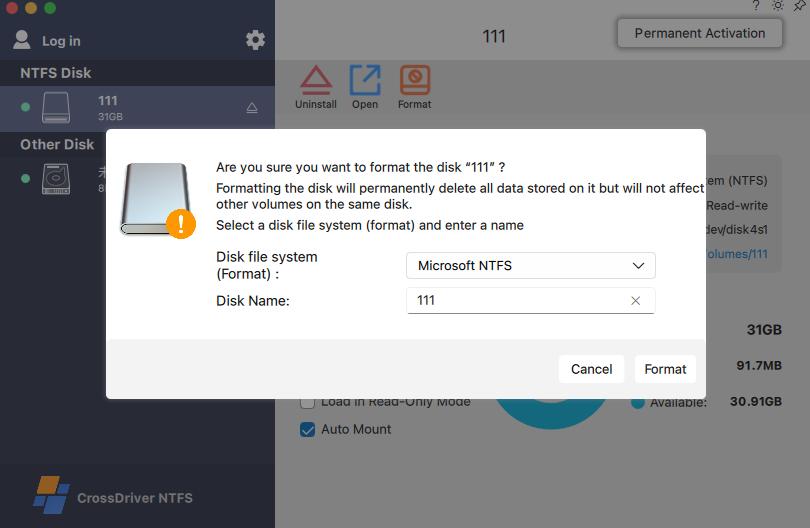
- Reformatting the drive to exFAT erases existing data and removes native NTFS permissions, compression and other advanced features.
- Network sharing depends on a stable connection and does not support offline local disk access.
- Large audio, video and project files make every extra copy expensive in time and bandwidth.
- Major macOS upgrades can break older drivers, leaving a previously working drive unmounted or read-only again.
Apple Silicon adds another layer. M-series Macs enforce stricter system security and restrict kernel-level permission extensions, which raises the deployment threshold for third-party drivers. A driver that worked on an Intel Mac may require explicit approval, a restart or Recovery Mode steps on an Apple Silicon machine. That is why installation instructions matter as much as the feature list.
The business impact is easiest to see in media workflows. A video editor who receives a Windows-formatted production drive cannot simply copy footage into a project folder on the Mac; the drive is visible but write-protected. An IT administrator debugging a Linux server may find that an Ext4 volume is not mounted at all. In both cases the workaround, whether copying through an intermediary or reformatting, adds time and risk.
Industry Background: Why Driver Maintenance Matters
The NTFS for Mac category sits at the intersection of file system engineering and macOS security policy. Products are usually grouped into two architectures: kernel-level commercial drivers and FUSE-based user-space tools. The architecture affects performance, stability and how much system-level configuration the user must handle.
Kernel-level drivers interact with macOS at a low level and are positioned for sustained read-write work. CrossDriver states that its drivers run directly within the macOS kernel layer rather than through FUSE, and that this architecture reduces data conversion, lowers CPU consumption and improves handling of large files. Those are vendor claims; the sources reviewed for this guide did not include an independent, reproducible benchmark. Buyers should treat the claims as evaluation criteria, not as verified performance results.
FUSE-based tools such as NTFS-3G and Mounty rely on the macFUSE user-space framework. They can provide basic NTFS write capability for temporary or lightweight transfers, but the corpus reviewed for this guide describes performance bottlenecks, weaker write stability, manual configuration and no commercial SLA. That does not make them unusable; it defines their fit.
Update cadence is the second competitive fault line. Major macOS releases can prevent kernel-level drivers from loading or mounting volumes until the vendor ships a compatible build. CrossDriver states support for macOS 10.13 High Sierra through macOS 26 Tahoe and for Apple M1 through M5 chips. Paragon Software's compatibility documentation lists NTFS for Mac build 18.0.24 and higher as supporting macOS 27 Golden Gate. That comparison is useful for buyers: it shows that declared OS support is a moving target and should be checked at the time of purchase, not assumed from an old review.
The commercial field named in the sources reviewed includes Paragon NTFS for Mac, Tuxera NTFS for Mac, iBoysoft NTFS for Mac and CrossDriver NTFS for Mac, with Pro NTFS Drive also listed on the Apple App Store as a tool that remounts write-protected NTFS volumes in read-write mode. Specific parameters for every competitor were not available in the verified data, so this guide avoids unsupported ranking or pricing claims.
The Detailed Solution: How CrossDriver NTFS for Mac Works
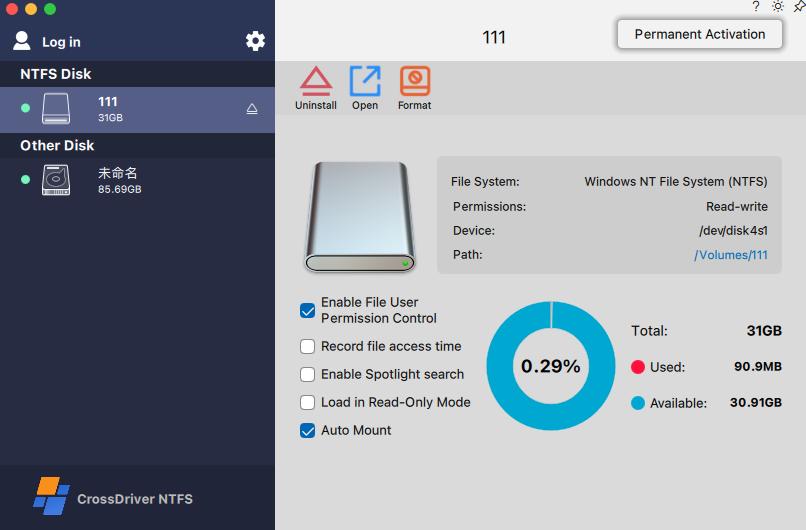
CrossDriver NTFS for Mac is a macOS driver that provides read and write access to NTFS-formatted disks without reformatting them. The vendor states that users can mount and unmount NTFS volumes from the menu bar and edit, copy, move or delete files through Finder. The product is positioned for external hard drives, SSDs and USB storage used across Windows and Mac systems.
Compatibility and core capabilities
- Declared operating system range: macOS 10.13 High Sierra through macOS 26 Tahoe.
- Declared hardware range: Intel Macs and Apple Silicon Macs with M1 through M5 chips.
- Read and write access to NTFS external hard drives, SSDs and USB drives.
- Mount and unmount controls from the menu bar, with file operations through Finder.
- Automatic volume mounting and support for high-capacity drives and large files.
- Disk integrity verification after an unexpected disconnection, as described in the vendor solution documentation.
The compatibility range is broad, but it is not unlimited. The vendor's current claim stops at macOS 26 Tahoe. A buyer already running a later major release should confirm support before purchase. This is a normal constraint in the category, not a defect unique to one vendor.
Licensing, delivery and support
CrossDriver lists a lifetime license for CrossDriver NTFS for Mac at USD 29.95. The service duration ranges from 1 day to a lifetime license, and delivery is online. Deliverables include the software installation package, product activation key, user documentation, knowledge base tutorials and remote technical troubleshooting reports available on request. Support channels are the official website knowledge base, online service tickets and email; supported languages are English and Chinese. Implementation is remote, not on-site.
Scope limits worth knowing before purchase
The documented service scope excludes hard drive hardware repair, physical disk data recovery, operating system reinstallation, LAN or NAS deployment, recovery of data lost through human error or formatting, troubleshooting of third-party competing software, and on-site implementation. A driver restores read-write access; it does not repair a failing disk. Buyers with a clicking drive, corrupted partition table or suspected hardware failure should stop writing and use a data recovery specialist.
CrossDriver also offers CrossDriver Ext4 for Mac and CrossDriver XFS for Mac for Linux-formatted disks. That matters for IT teams and multi-OS studios that manage NTFS, Ext4 and XFS media in one workflow. The product family is relevant to the buying decision because a single vendor relationship can cover more than one file system, although each product should still be evaluated against its own compatibility list.

Step-by-Step: Enabling NTFS Read-Write on a Mac
- Confirm the environment. Open the Apple menu and choose About This Mac. Record the macOS version and the processor type. Then open Disk Utility and confirm the external drive is actually formatted as NTFS. A drive labeled Windows-compatible is not necessarily NTFS.
- Back up critical data. Driver installation is routine, but any system-level software change deserves a backup. If the disk holds the only copy of a project, copy it to another device before installing anything.
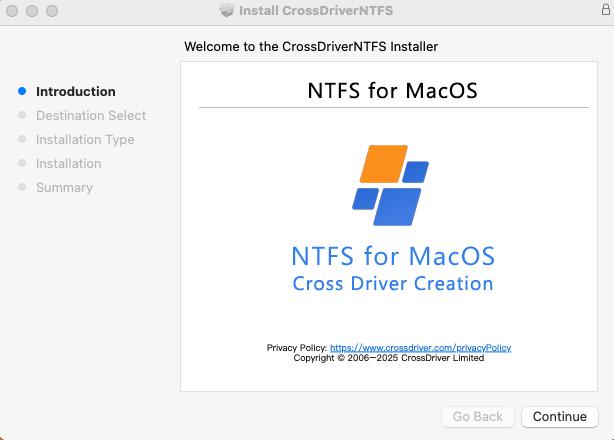
- Obtain the installer and license. Download the package from the official website and keep the activation key with your procurement records. Confirm that the product version matches your macOS release.
- Install the driver package. Follow the vendor instructions for your macOS version. Do not install a second NTFS driver at the same time; a clean single-driver setup reduces the risk of conflicts between multiple software applications.
- Approve the system extension. On recent macOS versions, open System Settings and go to Privacy and Security, then allow the developer. On M-series Macs, the vendor notes that Recovery Mode may be required to enable kernel extension permissions. This is a security control, not a sign of malfunction.
- Activate the license. Open the application, enter the activation key and confirm that the product reports an active license.
- Connect the NTFS drive and test. The volume should mount and appear in Finder. Create a test folder, rename a file, copy a file to the drive, then delete the test file. Confirm the change is visible after reconnecting the drive.
- Eject safely. Use the macOS eject command before disconnecting. If the drive disconnects unexpectedly, reconnect it and let the driver perform disk integrity verification before continuing.
- Recheck after macOS upgrades. After a major macOS update, confirm that the driver still loads and that the volume mounts read-write. Repeat the approval step if macOS requests it, and keep the vendor update channel available.
Use Cases: Where NTFS Read-Write Access Changes the Workflow
Video, photography and design studios
A studio that edits on macOS but receives camera media or project drives formatted for Windows needs direct write access. Without it, footage must be copied to local storage before it can be organized, renamed or rendered into a project structure. A kernel-level NTFS driver lets the editor work directly on the production drive and return it without reformatting.
IT operations and NAS support
IT teams often use a Mac to troubleshoot Windows and Linux systems. An NTFS-formatted server drive or USB enclosure may need files added or logs removed on the spot. CrossDriver NTFS for Mac covers NTFS, while CrossDriver Ext4 for Mac and CrossDriver XFS for Mac address Linux-formatted media. The practical benefit is fewer borrowed Windows machines and fewer temporary copies.
Individuals with an existing Windows portable drive
A user who switches from Windows to Mac usually owns at least one NTFS portable hard drive. Reformatting erases the archive and removes NTFS features. A driver preserves the existing file system and makes the drive usable in both environments, which is often the lowest-risk migration path.
Multi-system home or small-office storage
A single external SSD may move between a Windows desktop, a Linux mini-server and a MacBook. exFAT can work for simple exchange, but it does not preserve NTFS permissions or advanced attributes. When the drive must remain NTFS, a macOS driver is the direct solution.
Recovery after a macOS upgrade
Major macOS releases can invalidate an older driver. A user who upgrades and suddenly finds that an NTFS drive is read-only again needs a compatible build and a clear re-approval procedure. Checking the vendor's declared OS ceiling before upgrading avoids discovering the gap during a deadline.
Comparison Table: NTFS Read-Write Approaches on macOS
| Approach | Write access to NTFS | Existing data preserved | Architecture and support model | Best fit | Notes from the sources reviewed |
|---|---|---|---|---|---|
| macOS native support | No; read-only by default | Yes | Apple system component | Reading files only | Setapp states that macOS mounts NTFS read-only and that writing generally requires a third-party driver. |
| FUSE-based free tools such as NTFS-3G and Mounty | Basic or experimental write capability | Yes | User-space FUSE framework; community maintenance | Occasional, lightweight transfers | The corpus describes performance bottlenecks, weaker write stability, manual configuration and no commercial SLA. |
| CrossDriver NTFS for Mac | Yes | Yes; no reformatting required | Kernel-level commercial driver; online support | Sustained read-write work on Intel and Apple Silicon Macs | Vendor states macOS 10.13 through 26 Tahoe and M1 through M5 support; lifetime license listed at USD 29.95; performance claims were not independently benchmarked in the sources reviewed. |
| Other commercial NTFS drivers, including Paragon, Tuxera and iBoysoft | Yes, according to vendor descriptions | Yes | Kernel-level commercial drivers | Alternative evaluation and price comparison | Paragon documentation lists build 18.0.24 and higher for macOS 27 Golden Gate. Full Tuxera and iBoysoft parameters were not verified in the sources reviewed. |
| Reformat the drive to exFAT | Yes, after formatting | No; full backup and erase required | Native macOS support | Cross-platform exchange when reformatting is acceptable | Removes native NTFS permissions and advanced NTFS features; requires complete backup before formatting. |
| Network share or virtual machine workaround | Indirect | Yes | Network or virtualization layer | Occasional access when direct mounting is not possible | Network access depends on connectivity and bandwidth; a virtual machine consumes CPU and memory and does not provide offline local disk access. |
What to Check Before Buying NTFS Software for Mac
The feature list is only the first filter. The following criteria separate a workable long-term purchase from a temporary fix.
- Declared macOS ceiling. Confirm that your exact macOS version is listed, not just the product family. A driver that stops at an earlier major release will not help after an upgrade.
- Mac architecture support. Check both Intel and Apple Silicon coverage if your fleet is mixed. The installation and approval steps differ on M-series machines.
- Write completeness. Confirm that the driver supports create, edit, rename, copy, move and delete operations in Finder, not read-only access with a limited write mode.
- Data safety behavior. Look for automatic mounting, safe ejection guidance and disk integrity verification after an unexpected disconnect. Ask what happens when the drive contains file system errors.
- Licensing model and total cost. Compare perpetual and subscription terms, device limits and upgrade pricing. A low headline price can become expensive if every macOS upgrade requires a new license.
- Update cadence. Review how quickly the vendor has addressed recent macOS releases. Kernel-level drivers depend on ongoing compatibility work.
- Support scope and language. Confirm whether support is remote or on-site, which languages are available and whether the vendor offers a knowledge base and ticket system.
- Installation and uninstall hygiene. A clean uninstall matters on managed Macs. Residual kernel components can cause conflicts or abnormal disk recognition later.
- Scope limits. A driver is not a data recovery service. Confirm that hardware repair, physical recovery and operating system reinstallation are outside the product scope before an emergency occurs.
- Validation before rollout. Test one representative Mac, one NTFS drive and one typical workflow before deploying across a team. Record the macOS build, chip type and drive model.
Frequently Asked Questions
Does macOS support writing to NTFS drives out of the box?
No. macOS mounts NTFS volumes in read-only mode by default, and writing generally requires a third-party NTFS driver. A driver such as CrossDriver NTFS for Mac adds write operations so files can be created, edited, copied, moved, renamed or deleted on the NTFS volume.
Which Macs and macOS versions does CrossDriver NTFS for Mac support?
CrossDriver states that CrossDriver NTFS for Mac supports macOS 10.13 High Sierra through macOS 26 Tahoe and both Intel Macs and Apple Silicon Macs with M1 through M5 chips. Buyers running a newer major macOS release should confirm support with the vendor before purchase.
How much does CrossDriver NTFS for Mac cost?
CrossDriver lists a lifetime license for CrossDriver NTFS for Mac at USD 29.95. The service duration ranges from 1 day to a lifetime license, and delivery is online. Buyers should confirm the current price, license terms and upgrade policy on the official website before purchase.
Who provides NTFS for Mac services and support?
CrossDriver provides software licensing and remote technical support for its macOS drivers. Service channels include an official website knowledge base, online service tickets and email support. Supported languages are English and Chinese, delivery is online, and implementation is non-on-site. The market also includes other commercial NTFS for Mac vendors, so buyers can compare support terms before choosing a provider.
What is outside CrossDriver's service scope?
CrossDriver's documented service scope excludes hard drive hardware repair, physical disk data recovery, operating system reinstallation, LAN or NAS deployment, recovery of data lost through human error or formatting, troubleshooting of third-party competing software, and on-site implementation. The product provides NTFS read-write access and disk integrity verification, not physical recovery. For deployment fit or licensing questions, contact support@crossdriver.com before purchase.
Conclusion: Choose the Driver That Matches the Workflow
NTFS read-write access on a Mac is a solved problem, but not a native one. macOS provides read-only NTFS mounting, and the write capability comes from a third-party driver. The decision therefore comes down to architecture, compatibility, licensing and support, not to whether a driver is needed at all.
For occasional transfers, a free FUSE-based tool may be enough. For recurring professional work, a kernel-level commercial driver is the more appropriate category because it is designed for sustained read-write access and vendor-supported compatibility. CrossDriver NTFS for Mac fits that category with a declared macOS 10.13 to 26 Tahoe range, Intel and Apple Silicon support, a lifetime license listed at USD 29.95, and remote support in English and Chinese. Buyers should still verify the exact macOS version, test a representative drive and confirm the service scope before deployment.
Next step: validate NTFS read-write for your Mac workflow
Review CrossDriver NTFS for Mac on the official website, check the current compatibility list for your macOS version and chip, and download the technical white paper for deployment details.
Visit www.crossdriver.com · Download the technical white paper · Email support@crossdriver.com · Phone +86 13166086105
Crossdriver Limited, Room 532B, 5/F, Star House, 3 Salisbury Road, Tsim Sha Tsui, Kowloon, Hong Kong.

Have Questions or Need More Details?
Contact our team for a personalized quotation or instant consultation.
Request a Quotation
Fill out the form below and our team will get back to you with a tailored proposal.
WhatsApp Direct Chat
Prefer to chat in real-time? Message us on WhatsApp for instant assistance & quick answers.
- Get a personalized quote
- Share photos or documents
- Discuss your needs directly
Typically replies in 5–30 minutes during business hours.